
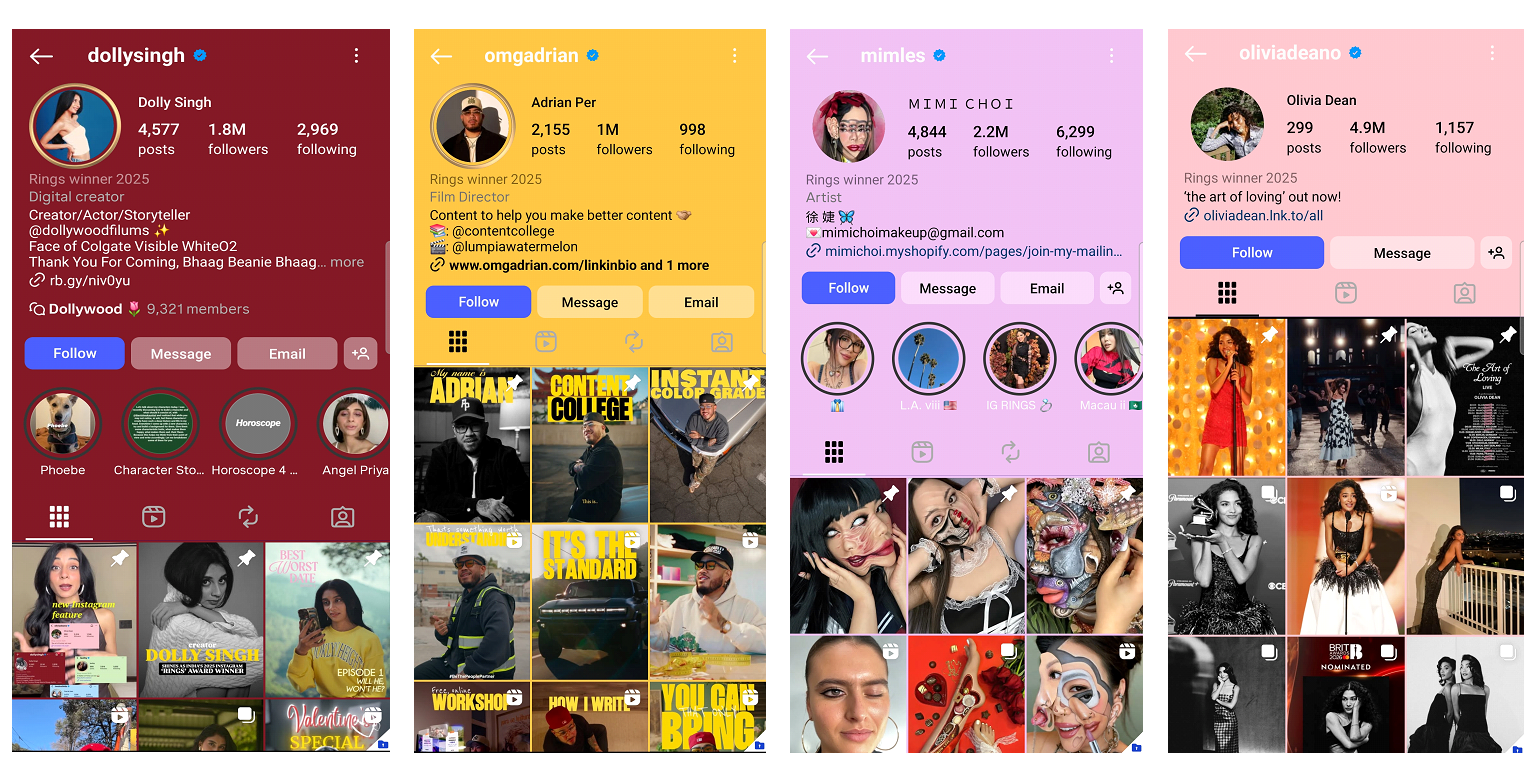
Instagram doesn’t offer a built-in option to change your profile background colour from the app settings. But there are several practical methods to customise how your profile looks, including your profile photo background, highlight covers, and feed aesthetic. This guide covers every available method clearly, so you can achieve the look you want without getting misled by outdated tutorials.
Table of Contents
- Changing Your Profile Photo Background
- Customising Highlight Covers
- Creating a Cohesive Feed Aesthetic
- Best Tools for the Job
- Frequently Asked Questions
- Related Posts
Changing Your Profile Photo Background
Your profile picture is a circle, so the background colour visible behind or within that circle comes from the image itself. To create a profile photo with a specific coloured background, use Canva, Adobe Express, or any photo editing app to place your photo or logo against a solid colour background before uploading. Steps: open Canva and create a 500x500px or 1000x1000px canvas, set the background to your chosen colour, add your photo with background removed (Canva’s background remover handles this), position it centred, download as JPG or PNG, and upload to Instagram as your profile photo.
For a simple solid colour profile photo: create the canvas, set background colour, add text or logo if desired, and upload. This is the most common approach for branded Instagram accounts where a consistent brand colour in the profile photo is desired.
Customising Highlight Covers
Highlight covers are the circles that appear on your profile above the feed grid. Their background colours are fully customisable because each cover is an image you upload. Create highlight cover images (1080x1920px for Stories dimensions) with your chosen background colour and optional icon in the centre using Canva, Adobe Express, or similar tools. Upload each as an Instagram Story, then assign it as the cover when editing your highlight. Matching highlight cover colours creates a polished, cohesive profile appearance that many creators use for brand consistency.
Creating a Cohesive Feed Aesthetic
While Instagram doesn’t let you set a background colour behind your feed grid, a consistent colour palette in your posts creates a strong visual identity. Decide on 2-3 primary colours for your feed and apply them consistently across graphics, borders, or photo editing presets. Apps like Preview, UNUM, and Planoly let you arrange posts before publishing to check how the grid looks as a whole. Lightroom mobile presets applied consistently to photos create a cohesive visual tone without requiring design skills.
Best Tools for the Job
Canva is the most accessible free tool for creating profile photos and highlight covers with custom backgrounds — the background remover and colour picker tools handle most requirements. Adobe Express offers similar functionality with more template variety. For photo editing with consistent colour grading, Lightroom Mobile (free version) with a saved custom preset applied to every photo is the standard approach for creators building a cohesive feed aesthetic. PicsArt and Snapseed offer quick editing on mobile for simpler adjustments.
Frequently Asked Questions
Can you change your Instagram profile background colour directly in the app?
No. Instagram does not have a native setting to change the background colour of your profile page. You can customise the background colour of your profile photo by uploading an image with your chosen background, and you can customise highlight cover backgrounds using images you create externally.
What size should Instagram highlight covers be?
Create highlight cover images at 1080x1920px (the Instagram Story format). The cover image is cropped to a circle when displayed on your profile, so centre your design elements within that circular crop area.
